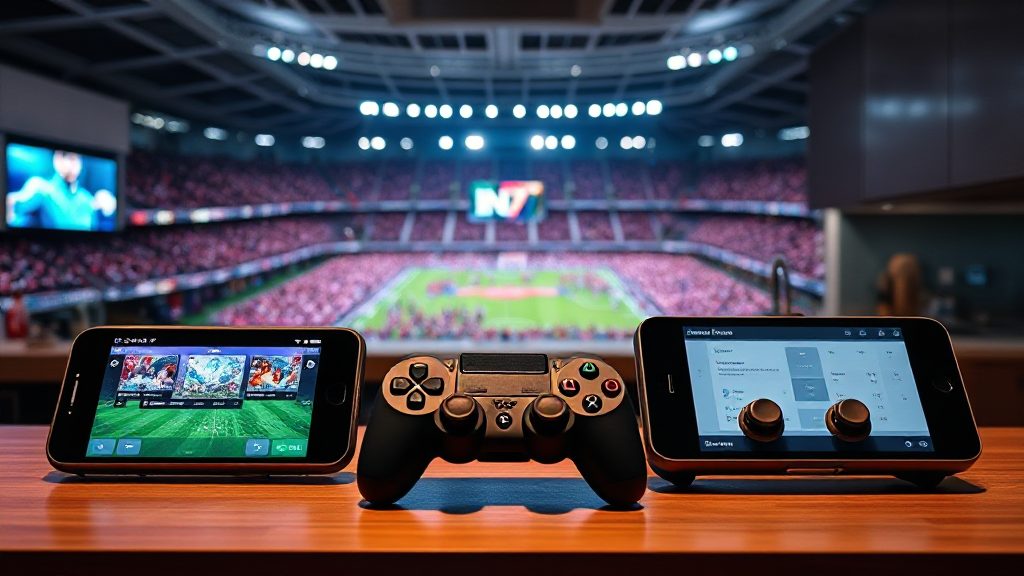
Shared Phones and Hand-Me-Downs: Should the In7 Game App Live There?
Shared Phones and Hand-Me-Downs: Should the In7 Game App Live There?
Before the In7 game app goes on a phone, ask who else picks that phone up. A shared device changes the calculation completely, because installing a gaming app is not just a decision for the person who downloads it. It is a decision about everyone who unlocks that screen, borrows that charger, or inherits that handset next year.
This guide frames the In7 Game app as a household question rather than a solo download. It walks through three common device scenarios, explains what each one changes, and closes with a short decision summary you can apply before tapping install.
Why a Shared Device Changes the App Decision
A personal phone is a closed loop. You install what you want, you grant permissions, and you accept the consequences. A shared phone is an open loop, and every app on it becomes part of a small commons.
The In7 Game app is an Android gaming application distributed as an APK, which means it is installed from a file rather than a store listing. That detail matters in a household context because sideloaded apps require an extra trust decision that store-installed apps partly absorb for you. Someone has to verify the source, read the permissions, and decide whether the file is worth keeping.
What the App Actually Needs From the Phone
According to the independent guide at Playin7Game, the app is an Android gaming client with a companion APK download and installation process. The site covers installation steps, permission checks, and safety considerations for Android users.
In practical terms, an Android game of this type typically asks for storage access to hold game assets, network access to load content, and sometimes notification or overlay permissions. Each of those is reasonable for a game, but each also touches data that other people on the phone may care about. Storage permission on a shared phone is not neutral; it is access to a pool of files that may include someone else’s photos or documents.
The Two Questions to Ask First
Before any install, ask two things. First, who has physical access to this device, including children, guests, and the person who will inherit it. Second, what is on the device that a game should not see.
If the answer to the second question includes work email, banking apps, or family photos, then the install deserves a slower review. The In7 game app may still be perfectly appropriate, but the review should happen before the file lands, not after.
Scenario One: The Shared Family Phone
The classic shared phone is the one that lives in a kitchen drawer or travels in a parent’s bag. Multiple people unlock it, and the app drawer is a committee decision.
What Installation Changes for Everyone
Installing a game on this device adds an icon that anyone can tap. It also adds an app that may run in the background, hold a session open, or request updates. On a phone with limited storage, a game can push out photos or slow the device for the person who mainly uses it for calls.
The bigger issue is account separation. If the game uses a login, the person who installs it may stay signed in, and the next person to pick up the phone inherits that session. Shared devices blur app accounts together, and that is worth resolving before installation rather than after.
A Workable Approach
Set up a separate Android user profile for the game if the phone supports it. This keeps the app, its storage, and its session isolated from the primary user’s data. If profiles are not available, agree on who owns the install and whether the app should be removed when that person is done with it.
Also review permissions immediately after install. Deny anything the game does not strictly need, and check the app’s settings for background activity controls. The Playin7Game guide covers permission review as part of its installation walkthrough, which is a sensible order of operations.
Scenario Two: The Hand-Me-Down Phone
Hand-me-downs are where app decisions age badly. A phone passed from a parent to a teenager, or from one sibling to another, carries a history of installs that nobody audited.
Inherited Apps and Inherited Risk
Before adding anything new, audit what is already there. Old games, forgotten utilities, and abandoned apps can hold permissions that no current user remembers granting. Adding the In7 Game app to a device with an unaudited app drawer compounds the problem rather than solving it.
A factory reset is the cleanest option if the hand-me-down is changing primary users. It removes old sessions, old permissions, and old accounts in one step. If a reset is not possible, at minimum remove apps nobody recognizes and revoke permissions that look excessive.
Where the APK Fits In
Because the app is installed from an APK, the hand-me-down process should include a source check. Download only from a source that explains what the file is and how to verify it, and compare the file against the instructions rather than trusting a random link. Source verification is the single most important safety step for any sideloaded game.
After installation, confirm the app opens cleanly, that no unexpected permission prompts appear, and that the phone’s battery and storage behave normally for a few days. A hand-me-down device is often older hardware, so performance changes are easier to notice there than on a new phone.
Scenario Three: The Kid’s Tablet or Spare Device
Tablets and spare phones often become children’s devices by default, and that default carries assumptions that deserve a second look.
What a Gaming App Adds to a Child’s Device
A game on a child’s tablet is not inherently a problem, but the surrounding setup matters. If the tablet has no separate profile, no content restrictions, and no supervision, then any installed app becomes part of an unmonitored environment. The decision is less about the game and more about whether the device is ready for any app at all.
Set up the device first: a restricted profile, a supervised account, and a clear rule about who installs software. Then evaluate the game against that setup. If the device cannot be configured that way, the safer answer is to keep the app off it.
Storage and Performance on Older Tablets
Spare devices are usually the oldest hardware in the house. A game that runs smoothly on a current phone may stutter, overheat, or drain battery quickly on a tablet several years old. Check the device’s available storage and Android version before installing, and be prepared to remove the app if performance degrades.
The installation guidance on the Playin7Game site is written for Android users generally, so it applies to tablets as well as phones. Use it as a checklist rather than a one-time read.
A Short Decision Summary for Households
Use this as a final pass before the install file goes onto any shared device.
| Device situation | Key concern | Sensible move |
|---|---|---|
| Shared family phone | Mixed accounts and data | Separate user profile or clear ownership rule |
| Hand-me-down phone | Inherited apps and permissions | Reset or audit before installing anything new |
| Kid’s tablet or spare device | Supervision and old hardware | Configure restrictions first, then test performance |
Three habits cover most of the risk. Verify the APK source before downloading, review permissions right after install, and revisit the app drawer whenever the device changes hands. None of these take long, and each one prevents a problem that is much harder to unwind later.
The In7 Game app is a reasonable addition to a household device when the household has decided who owns it, what it can access, and when it should come off. That decision is the real install step, and it belongs to everyone who shares the phone.